
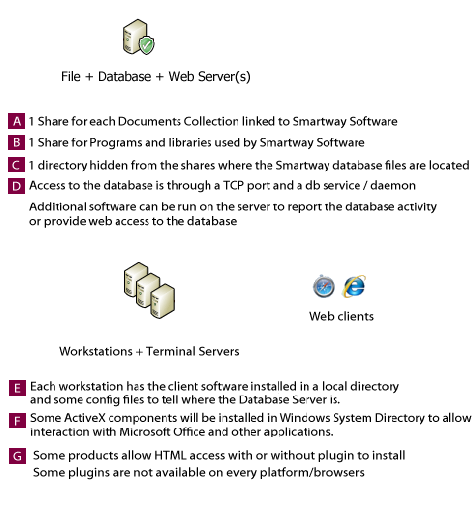
Our core client software runs as a 32 bits executable on Windows and Mac OS X
| Windows | 32 bits | 64 bits | RAM needed | Notes |
|---|---|---|---|---|
| Windows 10 | yes | yes | 4Gb | |
| Windows 8.x | yes | yes | 2Gb | |
| Windows 7 | yes | yes | 2Gb | |
| Windows Server 20xx | yes | yes | 2Gb | for use with Terminal Server and XenApp |
| Mac | 32 bits | 64 bits | RAM needed | Notes |
|---|---|---|---|---|
| 10.14 Mojave | yes | yes | 4Gb | preliminary support |
| 10.13 High Sierra | yes | yes | 4Gb | |
| 10.12 Sierra | yes | yes | 4Gb | |
| 10.11 El Capitan | yes | yes | 4Gb | |
| 10.10 Yosemite | yes | yes | 4Gb | |
| 10.9 Mavericks | yes | yes | 2Gb | |
| 10.8 Mountain Lion | yes | yes | 2Gb | |
| 10.7 Lion | yes | yes | 1Gb | |
| 10.6 Snow Leopard | yes | no | 512Mb | we still support this version |
Some products are only available on Windows, some only on Mac. Please call us to assess requirements.
Client software installers are provided for easy deployment with semi-automated update mechanisms.
An optional client database software may be required from the database vendor to connect to the database server.
We supply an optional PDF driver on Windows to allow our client software to generate Acrobat Documents.
RAM requirements of our software is between 64 and 128 Mb depending on the version and the system it is used on.
We support various Microsoft Office versions on both Windows and Mac
| Office | 32 bits | 64 bits | RAM needed | Notes |
|---|---|---|---|---|
| Office 2019/365 | yes | no | 512Mb | we don't support the 64bit version |
| Office 2016 | yes | no | 512Mb | we don't support the 64bit version |
| Office 2013 | yes | no | 256Mb | we don't support the 64bit version |
| Office 2010 | yes | no | 256Mb | we don't support the 64bit version |
| Office 2007 | yes | no | 256Mb | we still support it but we recommend upgrading. |
| Office 2003 | yes | no | 128Mb | we still support this version but some features missing |
| Office | 32 bits | 64 bits | RAM needed | Notes |
|---|---|---|---|---|
| Office 2019/365 | no | yes | 256Mb | preliminary support in 2017 |
| Office 2016 | no | yes | 256Mb | preliminary support in 2017 |
| Office 2011 | yes | no | 256Mb | |
| Office 2008 | - | - | - | this version is not supported |
| Office 2004 | yes | no | 128Mb | we still support this version but some features missing |
If you are under a valid Smartway CRM / SmartLex maintenance contract, please contact us to download the latest version of our Office plugin.
As Windows Office and Mac Office are different software, not all features are supported across platforms.
Office performance can be influenced if addins, templates with macros are not digitally signed or located in untrusted directories.
Sometimes addins and templates are quarantined and desactivated by Office updates and need to be manually reactivated.
More information about Microsoft Office for Windows.
More information about Microsoft Office for Macintosh.
Crucial to the good performance and stability of the solutions on Windows is to set exceptions for Antivirus and Intrusion Detection software installed on workstations & servers in your organization (some changes may require approval from your IT security board):
If you use firewalls on workstations & servers, ensure that the TCP ports used for database access are not already used by other services or blocked.
Better performance is achieved if you have a dedicated database server and another servers for file sharing, indexing and email.
All Windows Servers with SMB sharing, Mac Servers with AFP sharing, Linux with Samba are supported.
As a side note, if the customer wants to also run Exchange or a similar Email service on the file server, this may require a much more powerful hardware configuration or it may require a dedicated mail server machine.
A typical file server will have 4Gb of RAM and 1Tb of diskspace, but the number of users and the volume of new documents added each month will define the diskspace needs.
Fast hard disks (10K-15K RPM) with SAS and RAID 1-5 or Fiber Channel configuration are recommended. These disks would hold the biggest volume of data of the customer.
Depending on whether the Smartway Software handles various document collection linked to the database, the customer may need 1 or more network shares (A) to store these documents, usually with different rights for users.
For practical reasons, we always need a network share (B) to put Smartway software, config files, Office templates, client installers to automate/simplify deployment of client software and updates. Some files will be read-only and some may require read/write attributes if shared.
If the customer has only one server, the database can be installed on the file server, but we advise against it if the number of users is bigger than 25 or if there is no way to install a database software service/daemon on the file server.
In the past, sharing the database files on a network share was the only way to provide concurrent access to multiple users. While this still works on Windows (via SMB), Linux (via Samba) and Mac OS X (via AFP), we strongly advise against using file sharing for database access in the future due to :
As each issue can damage the database, a better solution is to install a client/server database service (read next section).
All Windows Servers, Mac OS X Servers and Linux Servers qualify if they are supported by the database vendor.
Database performance is primarily bound to disk speed and no interference (antivirus or competing services like mail services can harm performance).
2Gb of RAM and a SSD with 512Gb is now the minimum for most database server configuration but it clearly depends on the volume of the databases and the number of users.
Fast hard disks (10K-15K RPM) and ultra fast SSD disks with hardware RAID controllers are recommended. These disks will be constantly under stress because of the concurrent use of the database but they will contain less data than on the file server.
Since we support different database engines depending on the product, we cannot list here the requirements of all database vendors but it is usually a 32bit or 64bit software service listening to a TCP port and accessing the databases files on a directory (C) not located on a public share for performance and security reasons.
We recommend excluding database files from Antivirus and Fulltext indexing engines to get adequate performance.
For maintenance, hiding the directory containing the databases can be unpractical if the server is not accessible either physically or via remote access, so in this case a limited share for administrators can be helpful.
In the event where the Database server is hung or has crashed and rebooted, the sysadmin may need to kill manually hung client sessions on each workstation or in each session running on the Terminal Server to reenable logon.
Testing the coherence of / repairing the database post crash is critical using database tools that needs to be installed on the database server.
Regular reporting and reorganizing/reindexing of the database can help avoid crash and performance degradation.
To allow a web access to the database server, an IIS or Apache service/daemon and a software provided by the database vendor are required and must be installed on the database server to run our web app.
Backup procedures for file & database server(s) are to be handled automatically on a daily and weekly basis via a standard backup solution on external disks (or tapes).
Scheduling an automated logout from the client software in the evening for open sessions and having the backup of the database ahead of the documents is generally a good option.
For replication/failover solutions, we have tested solutions like DoubleTake that work live 24h/24h with most database & groupware software, on the same site or between remote locations over slow and fast communication lines.
Basically, you must install the same software (database service, etc.) on the standby servers, install the replication software and define the source and the target for copying databases and documents.
If the source server crash, the target server takes its place after a few seconds or minutes delay (it depends on the service), some client applications won't notice the difference, some will need to be restarted to run correctly. When the source server is repaired, the updates on the target server are replicated on the source.
Of course, having all servers protected by Uninterruptible Power Supply units is a requirement for avoiding server crashes.
The recommended way to access our software & database remotely is to use a Terminal Server or a Virtual Desktop Infrastructure (VDI) and connect securely via RemoteDesktop, Citrix ICA/Xen App.
For performance, please note that XenApp uses a faster protocol (ICA) for remote access than Terminal Server RDP.
Configuring the Terminal application server(s) or VDI is quite a complex task which involve a mix of operating system & application tuning, security & user settings management and network management; so please contact a specialist in your area if you have more than 1 user that needs to connect on a daily basis from remote sites.
For some of our products we have a web access module with less features but which is a much cheaper alternative to Terminal Server and VDI.
In this case, the remote user use its internet navigator and the HTTP or HTTPS protocols to connect to our web app.
Some web apps are based on pure HTML/Javascript code and some are based on proprietary plugins that require prior installation on the desktop machines.
To learn which modules are available & which database is supported per product, we suggest you contact us from our home page.
Last update: december 2018